
烧录固件
This guide details the complete process of writing firmware to Flash in
sftool-gui, covering device connection, firmware selection, and flashing
execution.
Flashing Preparation
Before starting the flashing process, ensure the hardware is connected properly
and software parameters are correctly configured:
Start the software: open the
sftool-guiapplication.Configure the chip: in the
Chip Selectionarea, accurately choose your
targetchip modelandmemory type.Set the interface: in the
Interface Settingsarea, select theserial port
andbaud ratecorresponding to your hardware connection.Establish connection: click the
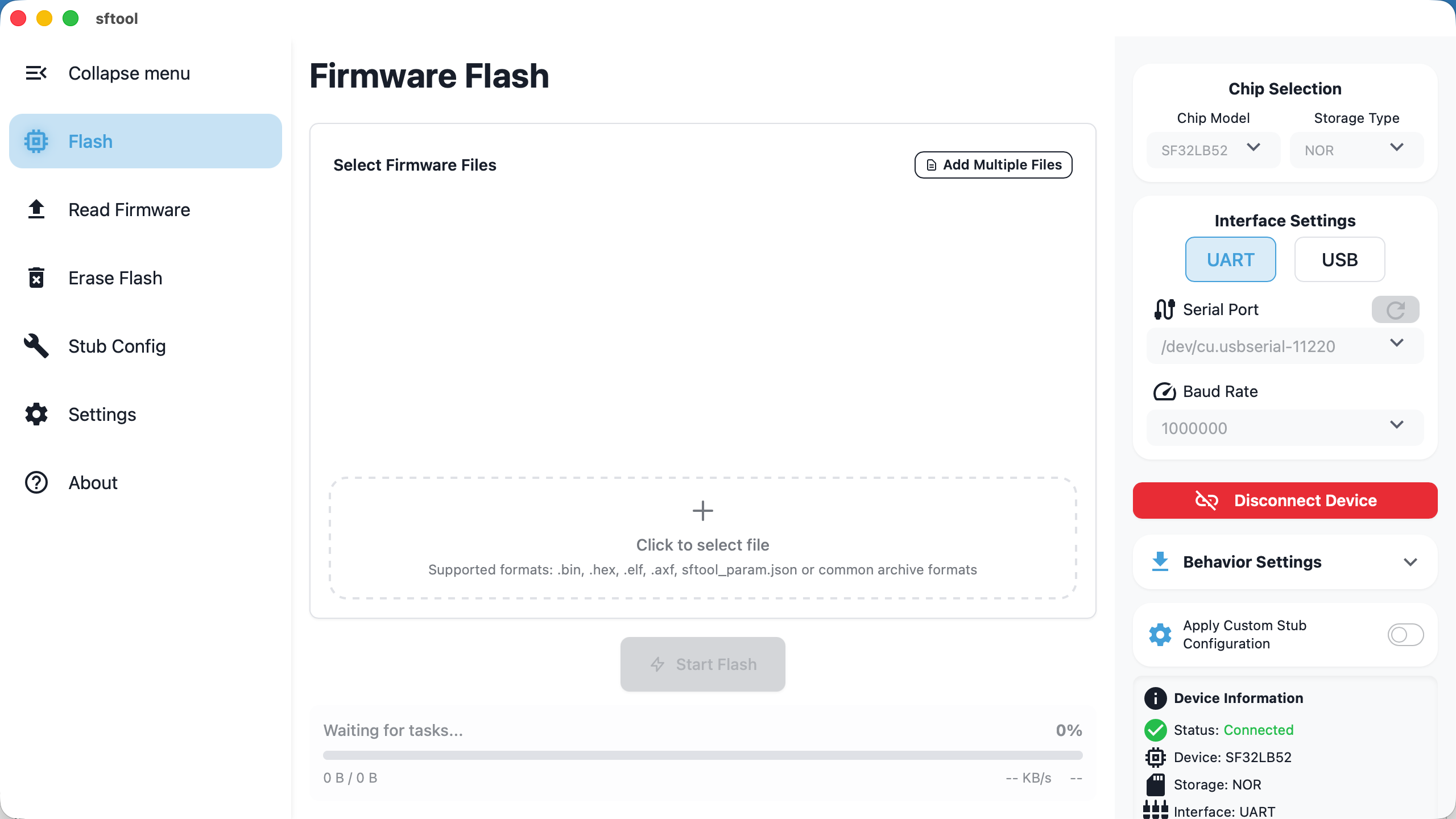
Connect Devicebutton. Wait for the status
bar to indicate a successful connection (as shown below).
Selecting Firmware
sftool-gui supports various firmware formats and provides intelligent address
parsing. Refer to the following instructions according to your file type:
1. Auto-configuration Mode (Recommended)
Use the following formats to automatically handle multi-file loading and address
allocation—most convenient:
sftool_param.jsonconfiguration fileNote: The system will automatically populate Bootloader, Ftab, Main, and other
binary files and their corresponding addresses based on the JSON
configuration..zip/.rar/.7zarchivesNote: Ensure the archive contains
sftool_param.json. After importing, the
software will automatically extract it to a temporary directory (cleaned on
exit) and parse the configuration.
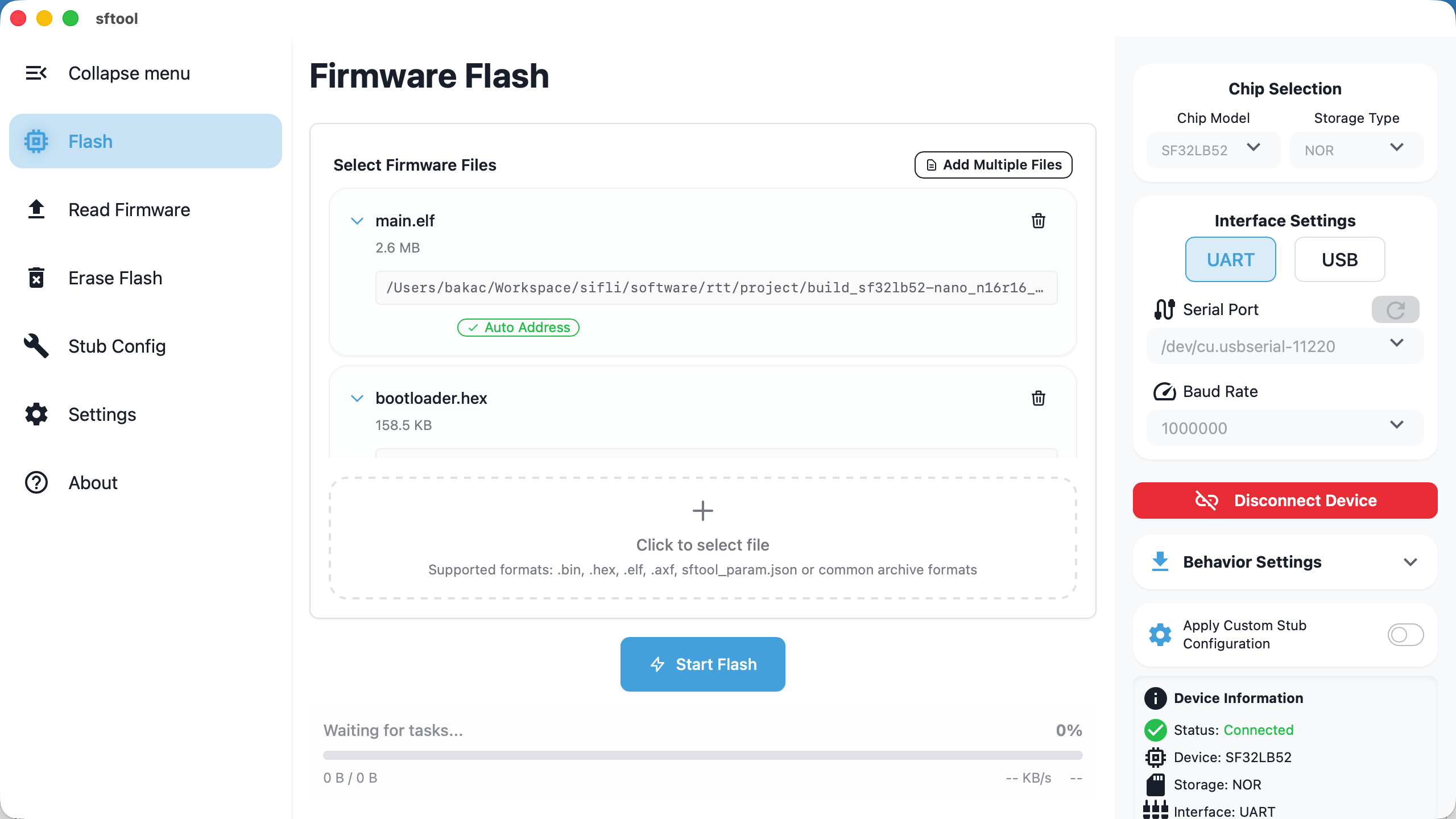
2. Automatic Address Detection
.hex/.elf/.axffilesNote: The software will automatically parse and fill in the flashing
addresses.
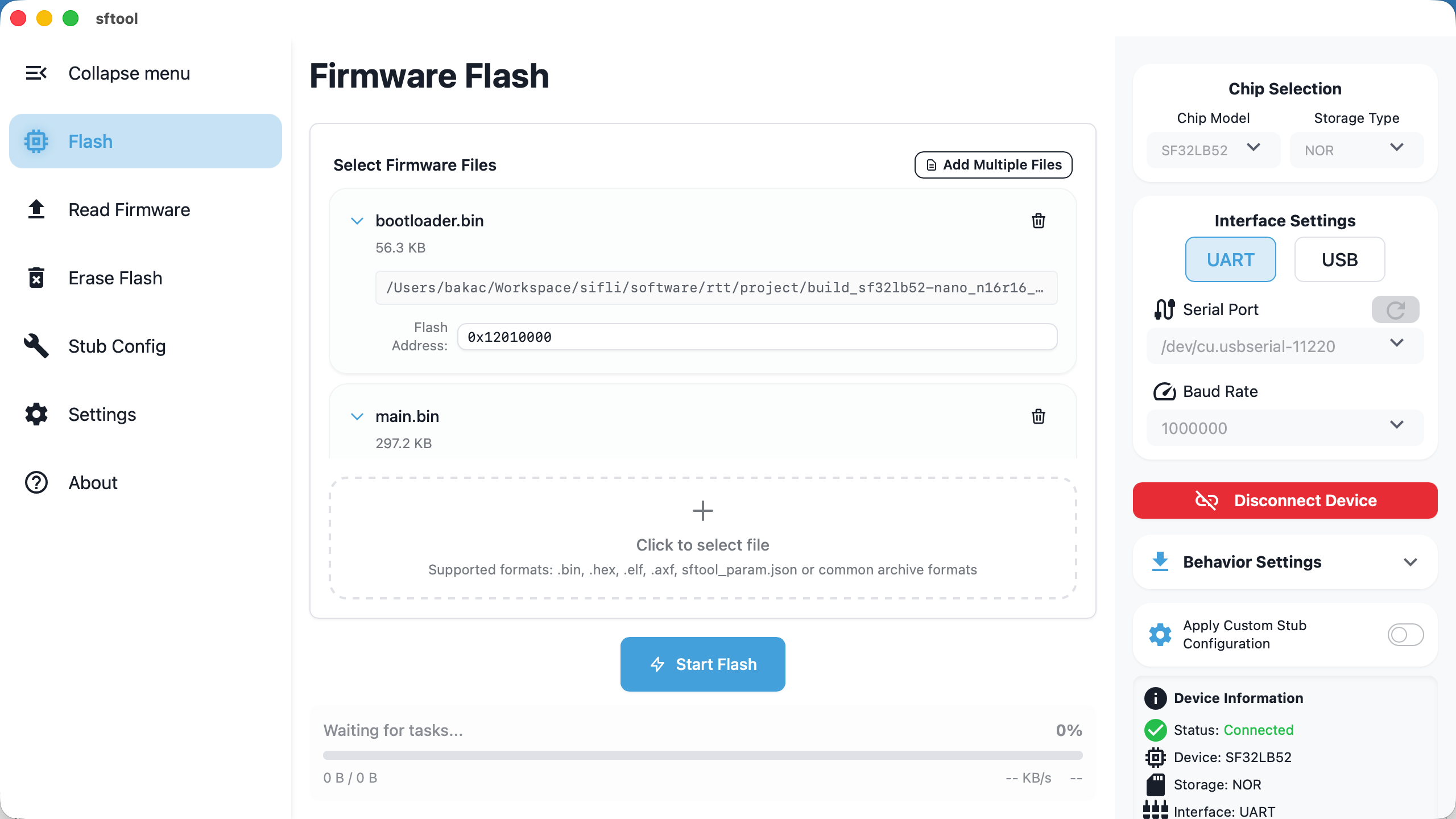
3. Manual Address Configuration
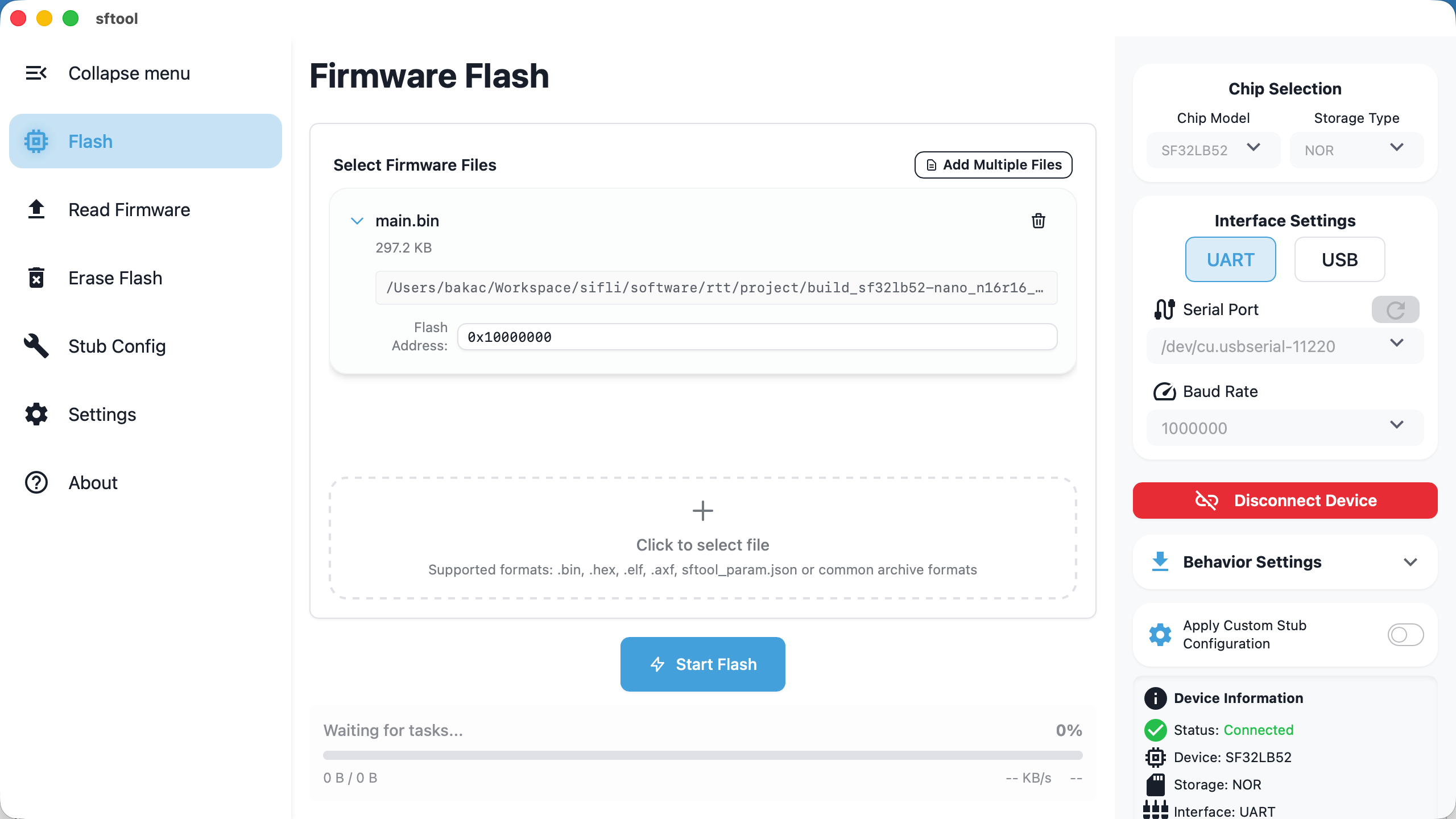
.binraw binary filesNote: After importing the file, you must manually enter the flashing address
in the address field.
Executing Flash
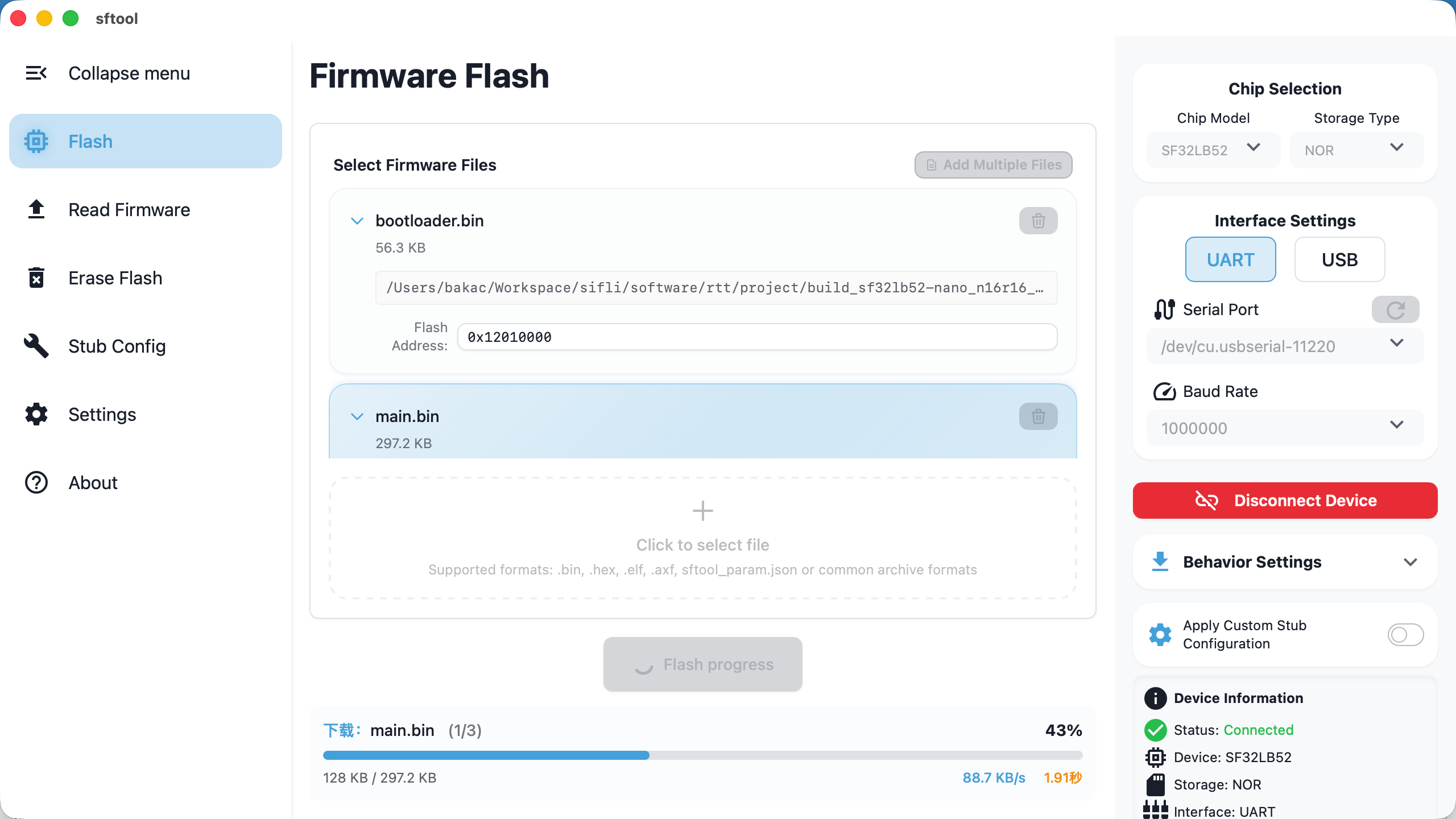
Start writing: after confirming files and configuration are correct, click
theStart Flashbutton.Tip: During flashing, the row for the file currently being written will be
highlighted.
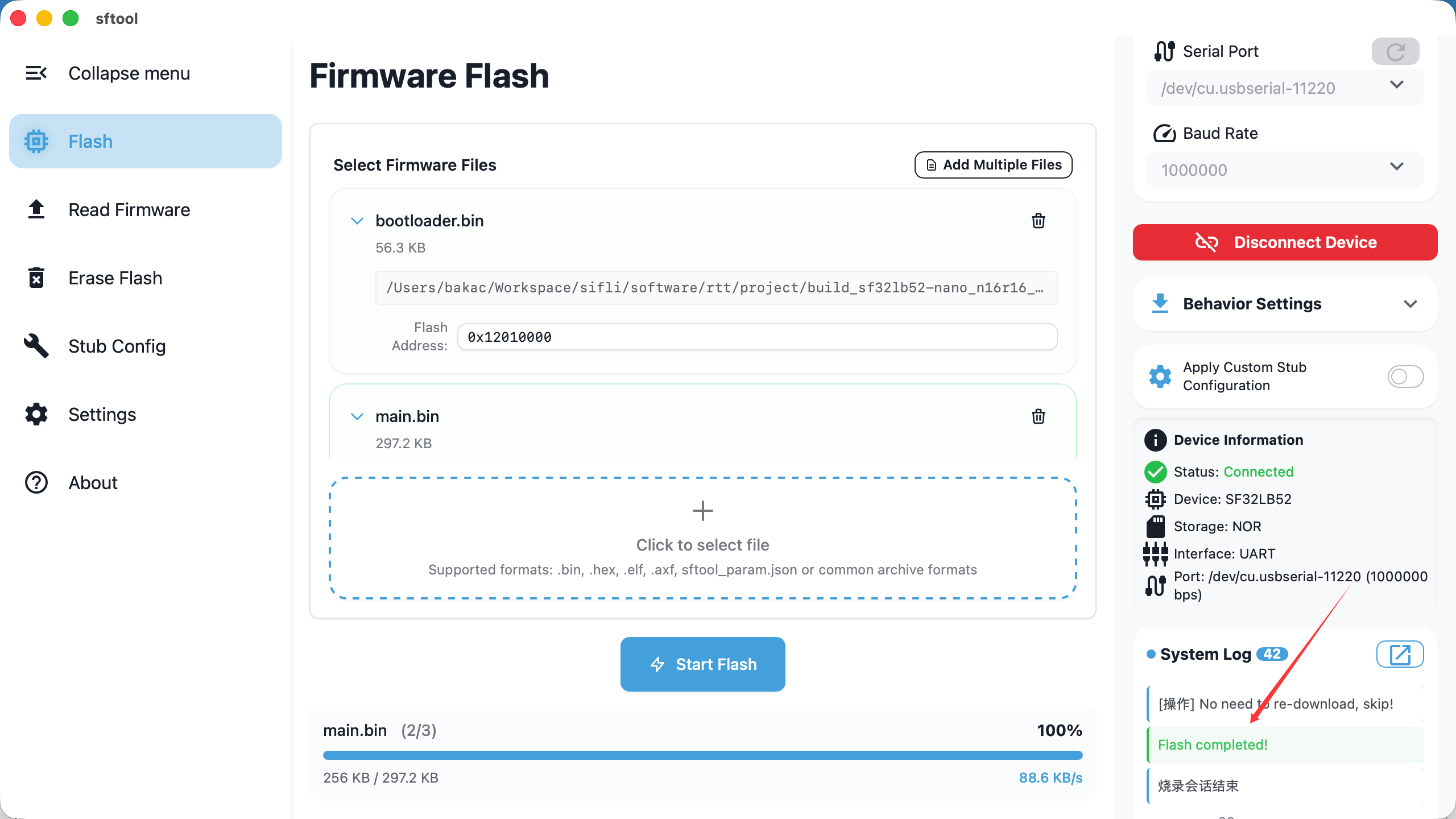
- Completion and Reset:
When the system log box displays Flash completed!, the operation is finished.
You can then disconnect and reboot the device to apply the firmware.