
BT PAN OTA Example
Source path: example/bt/pan_ota
Supported Platforms
sf32lb52-lcd_n16r8
sf32lb52-lchspi-ulp
sf32lb52-nano_a128r16
Overview
This example demonstrates connecting to a mobile phone’s PAN protocol via Bluetooth, registering the device to a specific server through Finsh commands, retrieving firmware version information, and supports firmware updates via OTA.
Adding CA Certificates
Storing signing authority root certificates
The
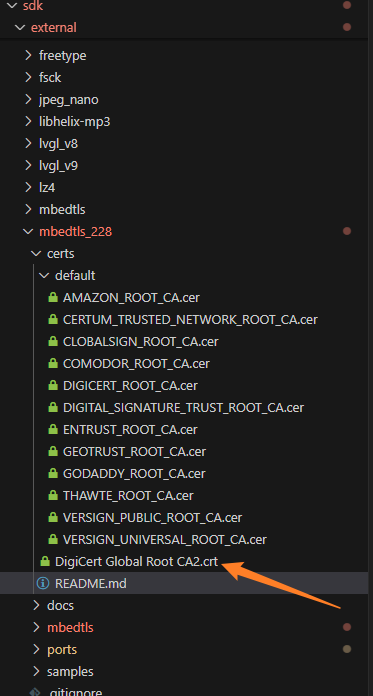
external/mbedtls_288/certs/defaultdirectory stores commonly used CA certificate filesThe
certsdirectory stores user-added CA certificate files
If the certs/default directory does not contain the required CA root certificate file
the user needs to copy their PEM format CA certificate to the “certs” root directory. (Only PEM format certificates are supported, DER format certificates are not supported)
Add certificates stored alongside DigiCert_Global_Root_CA2.crt
Certificate format description
PEM Format CertificatePEM Format Certificate usually ends with .pem and .cer suffixes.
When opened with a text editor, the file content starts with
-----BEGIN CERTIFICATE-----and ends with-----END CERTIFICATE-----.DER Format CertificateDER Format Certificate is a binary file type.
View configuration
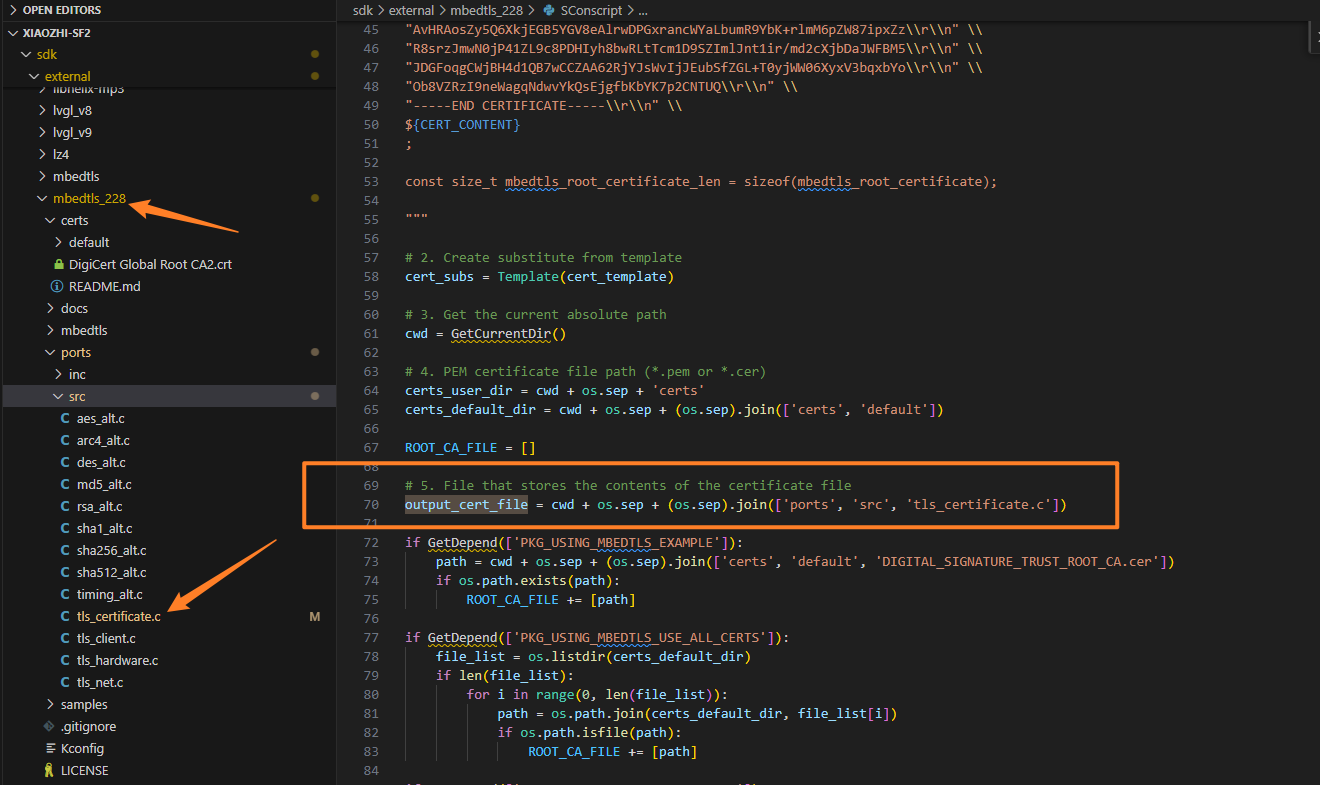
Check proj.conf; if PKG_USING_MBEDTLS_USER_CERTS is enabled, all files in the certs root directory will be merged into ports/src/tls_certificate.c
Usage of the Example
Before connecting, it’s best to ensure the mobile phone has network sharing enabled. If network sharing is turned on after BT connection, you can reconnect to the PAN and thus connect to the network using the finsh command “pan_cmd conn_pan”
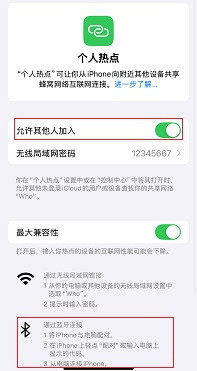
Enable network sharing on iOS. iOS needs to ensure a SIM card is installed, then simply turn on Personal Hotspot:
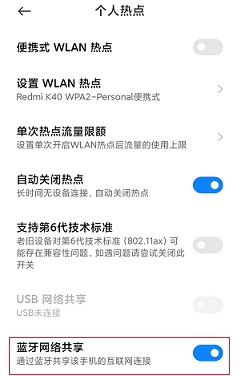
Different Android phones have different paths to enable network sharing, but they all involve finding and enabling Bluetooth network sharing within personal hotspot sharing. Android can open Bluetooth network sharing while connected to WiFi:
On startup, the example enables Bluetooth Inquiry scan and page scan, allowing devices like phones to discover and initiate connections to this device. The default Bluetooth name is sifli_pan.
PAN protocol will only connect successfully when the phone has network sharing enabled. You can find the print “pan connect successed” in the log. Ensure that the phone itself has internet access before executing commands.
This example supports OTA functionality, enabling remote firmware upgrades. Before using the OTA function, add the following configuration in the SConstruct file:
if GetDepend('USING_DFU_PAN'):
    AddDFU_PAN(SIFLI_SDK)
The OTA function provides the following commands:
check_dynamic_cmd- Register device to OTA server and check for new firmware versions, sets update flag if new version existsreset_to_dload_cmd- Check update flag, restart device to enter OTA download modeshow_version_cmd- Display current firmware version information
Hardware Requirements
Before running this example, prepare:
One development board supported by this example (Supported Platforms).
Mobile phone.
Version files deployed on the server, corresponding to the URL built by build_ota_query_url
Compilation and Flashing
Switch to the example project directory and run the scons command for compilation:
> scons --board=eh-lb525 -j32
Switch to the example project/build_xx directory and run [uart_download.bat], select the port as prompted to proceed with downloading:
$ ./uart_download.bat

     Uart Download

please input the serial port num:5
For detailed steps on compilation and downloading, please refer to the Quick Start Guide.
Expected Results of the Example
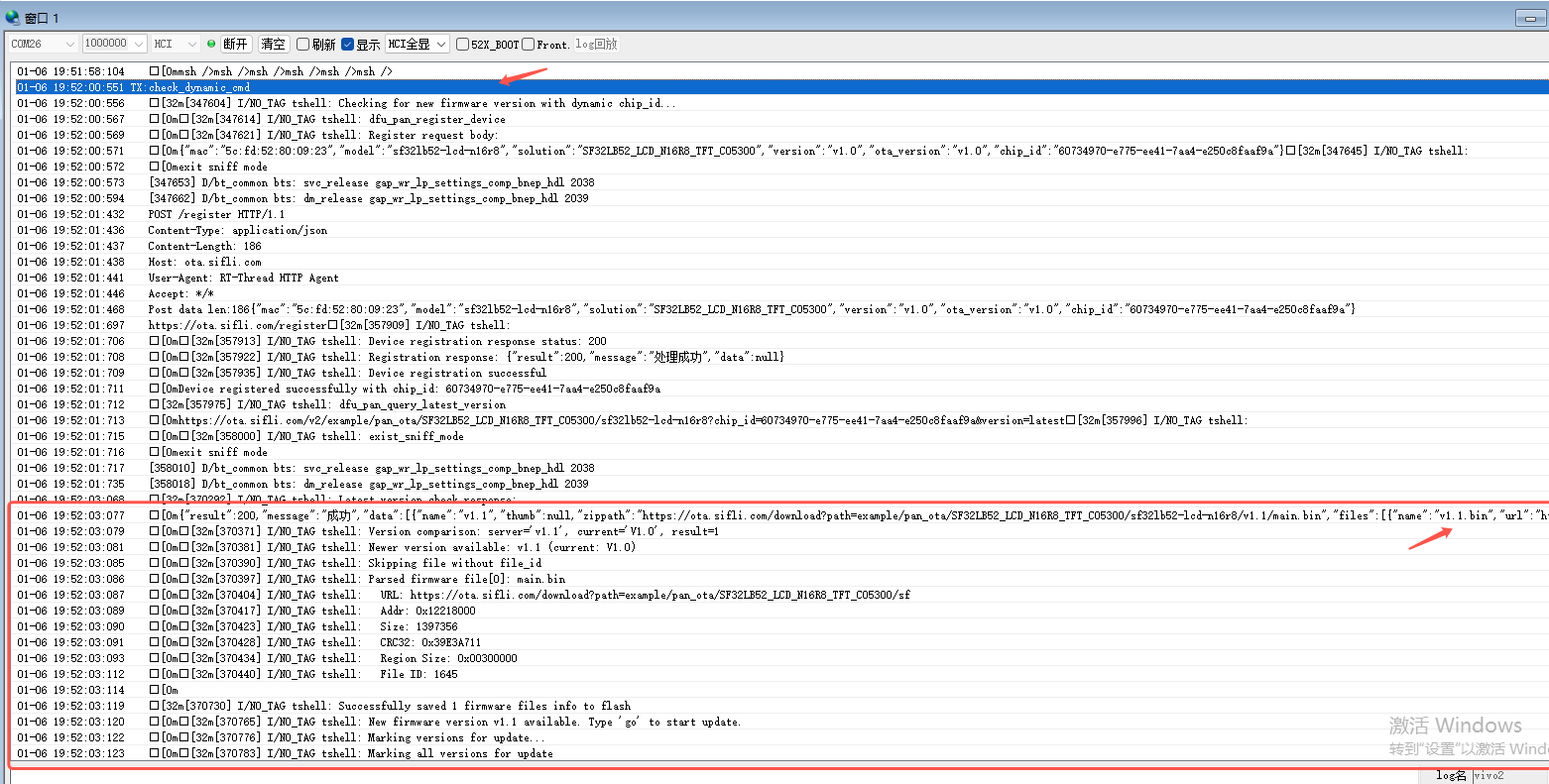
The example can connect to the mobile phone’s PAN protocol, execute commands to properly register settings to the server, and query versions returning JSON formatted version information.
Note: dfu_pan_query_latest_version() will retrieve JSON data returned from the server and write the firmware structure to flash address for direct download later. The JSON is as follows, where v1.1.bin is a placeholder file that needs to be placed together with the firmware file and match the current folder name.

{
  "result": 200,
  "message": "Success",
  "data": [
    {
      "name": "v1.1",
      "thumb": null,
      "zippath": "https://xxx.xxx.com/download?path=example/SF32LB52_LCD_N16R8_TFT_CO5300/sf32lb52-lcd-n16r8/v1.1/v1.1.bin",
      "files": [
        {
          "file_id": 391,
          "file_name": "main.bin",
          "file_size": 4087608,
          "crc32": "0x1026622b",
          "addr": "0x12460000",
          "region_size": "0x00680000",
          "note": null,
          "name": "main.bin",
          "url": "https://xxx.xxx.com/download?path=example/SF32LB52_LCD_N16R8_TFT_CO5300/sf32lb52-lcd-n16r8/v1.1/main.bin"
        },
        {
          "name": "v1.1.bin",
          "url": "https://xxx.xxx.com/download?path=example/SF32LB52_LCD_N16R8_TFT_CO5300/sf32lb52-lcd-n16r8/v1.1/v1.1.bin",
          "addr": "",
          "size": "",
          "crc32": "",
          "region_size": "",
          "note": ""
        }

      ]
    }
  ]
}
After connecting PAN properly:
Executing the “check_dynamic_cmd” command will print the following information:
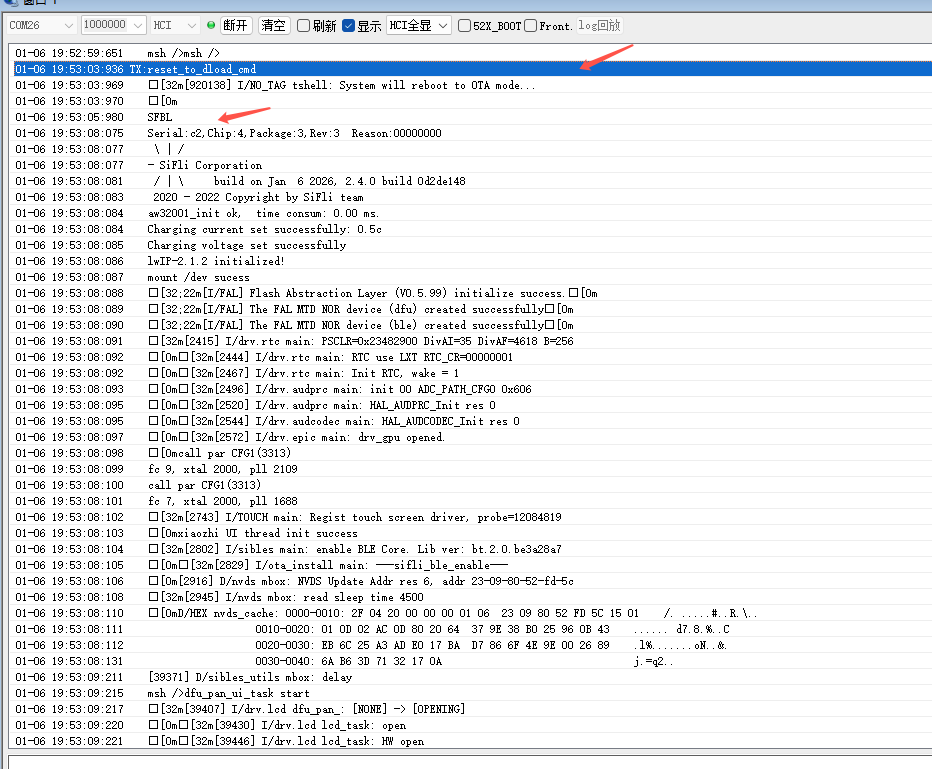
Executing the “reset_to_dload_cmd” command will print the following information:
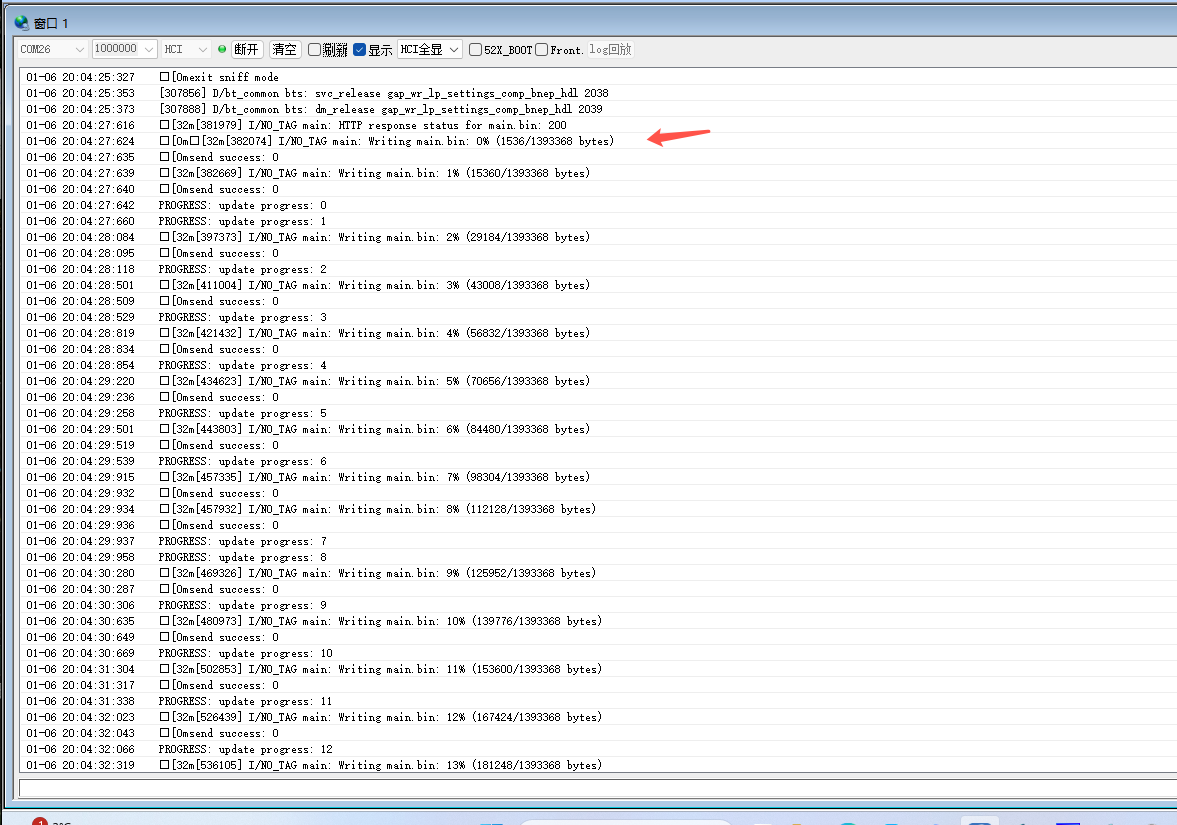
 Upgrade progress can also be observed through screen UI
 Executing the “show_version_cmd” command will print the following information:
Indicating successful upgrade from v1.0 to v1.1

Troubleshooting
Reference Documentation
Update Log
Version |
Date |
Release Notes |
|---|---|---|
0.0.1 |
12/2025 |
Initial version |