
FsrwTool
1. Overview
FsrwTool is an in-house tool developed by SiFli Technology. Its primary function is to transfer files from a PC to a target board, or from a target board back to the PC.
Tool path: tools/FsrwTool
2. Environment Setup
FsrwTool requires no installation and runs directly on Windows (XP / 7 / 10 / 11 …).
3. Features
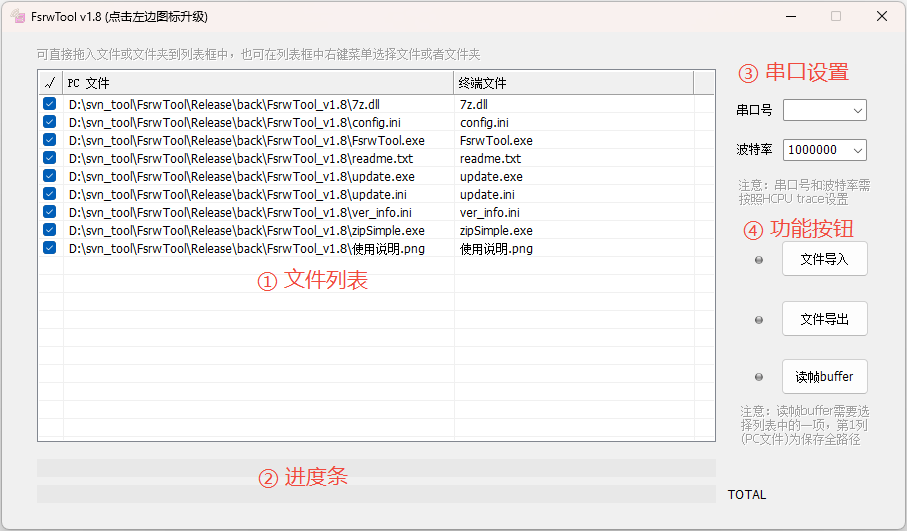
The main interface is shown above and consists of four areas.
① File List
The file list displays the files to be read or written. The first column is the selection checkbox. Clicking the first-column header selects or deselects all entries.
There are two ways to add entries: drag files or folders from the PC into the list; or use the right-click context menu to select Add File / Add Directory / Add Row.
Entries in the list are editable — the PC-side path/filename and the target board path/filename can be modified as needed.
Use the right-click context menu options Delete Row or Clear List to remove individual entries or all entries.
② Progress Bars
The upper progress bar shows the transfer progress of the current file. The lower progress bar shows the overall progress for all selected files.
③ Serial Port Settings
Port Select the COM port corresponding to the Trace serial port configured in the HCPU firmware project.
Baud Rate Set the baud rate to match the Trace serial port baud rate configured in the HCPU project. Typically 1000000.
④ Function Buttons
Import Files Transfers the checked files from the PC to the target board.
Export Files Transfers the checked files from the target board to the PC.
Read Frame Buffer Reads the current frame buffer data from the target board and saves it to the PC.
4. Usage
The tool is straightforward to use. Double-click to open it, then select the HCPU project’s Trace port and configure the matching baud rate.
Importing Files
Drag the file(s) to be imported into the file list. Each dragged entry is selected by default.
Double-click the third column of the entry to edit the save path on the target board (the path must already exist on the board).
Click Import Files and wait until the progress bar reaches 100%.
Exporting Files
Right-click the file list and select Add Row.
Double-click the second column to enter the full PC-side save path; double-click the third column to enter the full path of the file on the target board.
Click Export Files and monitor the progress bar until it completes.
Reading Frame Buffer
Right-click the file list and select Add Row.
Double-click the second column to enter the full PC-side save path.
Click Read Frame Buffer and monitor the progress bar until it completes.