
SiFli_RfTool
1. Overview
SiFli_RfTool is an in-house tool developed by SiFli Technology. Its primary function is to test BLE/BT RF transceiver performance.
Tool path: tools/SiFli_RfTool
This tool is used together with a test firmware. SiFli Technology provides an RF test firmware for radio-frequency testing; there is currently no fixed release link — contact your FAE to obtain it [TBD]. Users may also use their standard product firmware for testing; contact your FAE for configuration notes required in the user firmware for RF testing [TBD].
2. Environment Setup
SiFli_RfTool requires no installation and runs directly on Windows (XP / 7 / 10 / 11 …).
3. Features
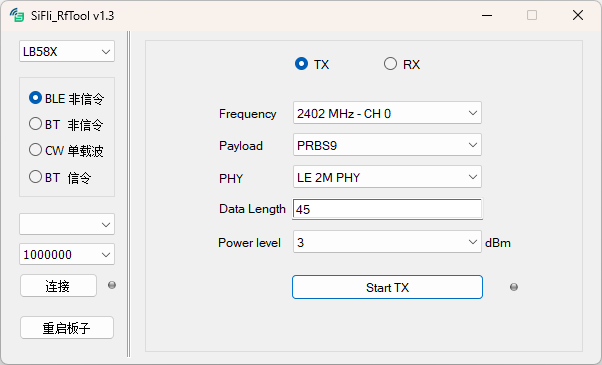
The main interface is shown above and consists of two areas: the basic control area on the left and the function test area on the right.
Platform Selects the chip type: LB58X / LB52X / LB56X / LB55X. Note: LB55X is a BLE-only chip and does not support BT-related tests.
Function
BLE Non-Signaling Runs BLE non-signaling tests, controlling the target board to receive or transmit specific BLE data.
BT Non-Signaling Runs BT non-signaling tests, controlling the target board to receive or transmit specific BT data.
CW Single Carrier Controls the target board to transmit an unmodulated continuous wave (CW) signal on a specified frequency.
BT Signaling Sends a command to put the target board into BT signaling test mode. In signaling mode, the test instrument and the target board complete the test through over-the-air signaling exchange without further tool involvement.
Serial Port Selects the chip’s UART1 as the command interface.
Baud Rate The baud rate depends on the test firmware configuration. The default is 1000000.
Connect / Disconnect Opens the serial connection. Click again while connected to disconnect. The status indicator turns green when connected successfully.
Restart Board Sends a command to reboot the target board.
Function Test The function test area displays the configuration parameters for the currently selected test function. These are standard BT/BLE RF test parameters. Set the parameters and then click the TX or RX button to start the test.
4. Usage
The tool is straightforward to use. Double-click to open it and follow the steps below:
Note
RF testing can use either the SiFli-provided RF test firmware or the customer’s standard firmware. When using customer firmware, first send the command bt_cm uart_dut through the HCPU Trace port to switch UART1 to HCI mode.
Select the chip type based on the target board.
Select the test function to use.
Select the COM port corresponding to the chip’s UART1 on the PC.
Select the baud rate (default 1000000 unless changed).
Click Connect; the status indicator turns green.
Configure the test parameters in the function test area.
Click Start TX/RX; the indicator turns green.
After the test is complete, click Stop TX/RX to end the test. RX test results include RSSI and packet error rate information.