
HCI Log Capture Guide
This document describes how to capture Bluetooth HCI logs, covering four scenarios: enabling the HCI log on the development board, tracing the board HCI log with a serial port tool (SifliTrace), parsing the HCI log with Frontline, and capturing the HCI log on a phone.
1. Enabling the HCI Log on the Development Board
First, make sure the following two macros are enabled in the project configuration:
CONFIG_HCI_ON_LOG=y
CONFIG_LOG_ON_CONSOLE=y
The HCI log switch is stored in NVDS. Enter the following command in the serial terminal (finsh/msh):
nvds update hci_log 1
1enables the HCI log, and0disables it.The command eventually calls
sifli_hci_log_enable(), which writes the trace configuration to NVDS (NVDS_STACK_TAG_TRACER_CONFIG); the setting therefore survives a reboot.
2. Tracing the Board HCI Log with a Serial Port Tool (SifliTrace)
Select the corresponding HCI log output port and set the log type to HCI.
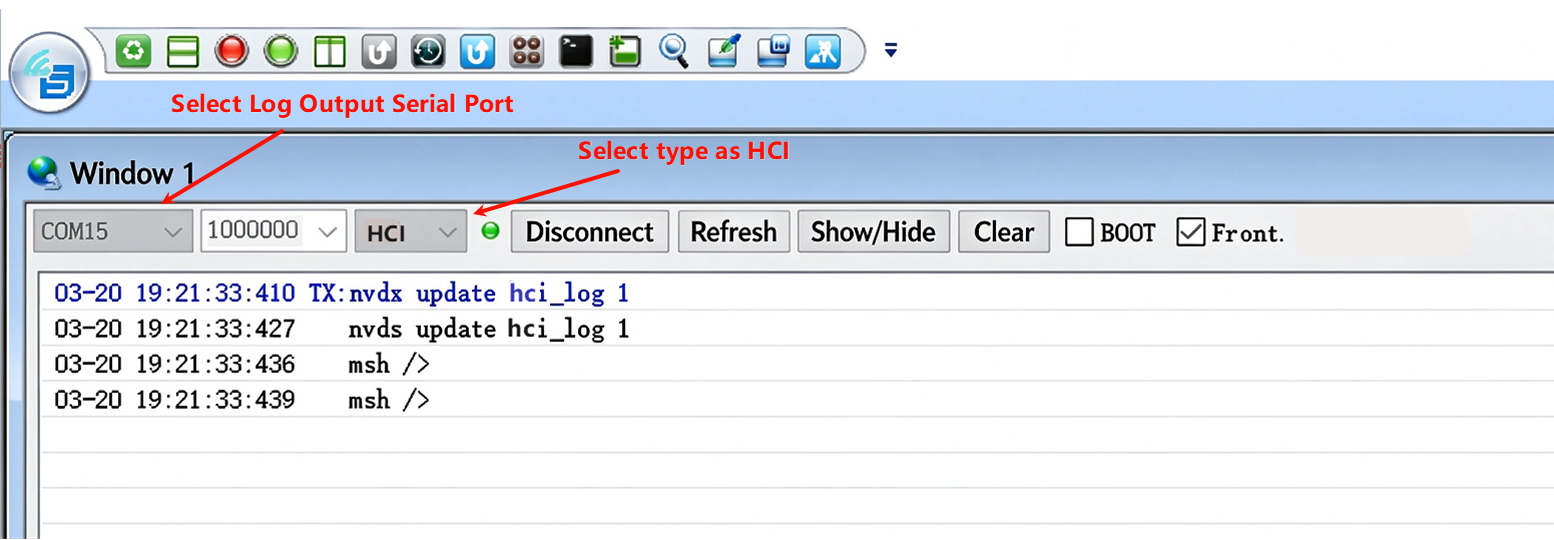
Select the log type
3. Parsing the Board HCI Log
Parsing the board HCI log requires the Frontline tool. The steps are as follows.
3.1 Install Frontline
Frontline is a commercial software product from Teledyne LeCroy (the companion software for wireless protocol analyzers).
Official download page: Software Downloads - Protocol Solutions
Warning
Frontline must be installed in the default path.
3.2 Open Frontline
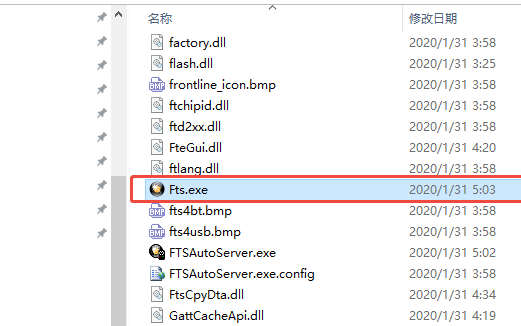
Open Frontline
3.3 Select the CPAS Side
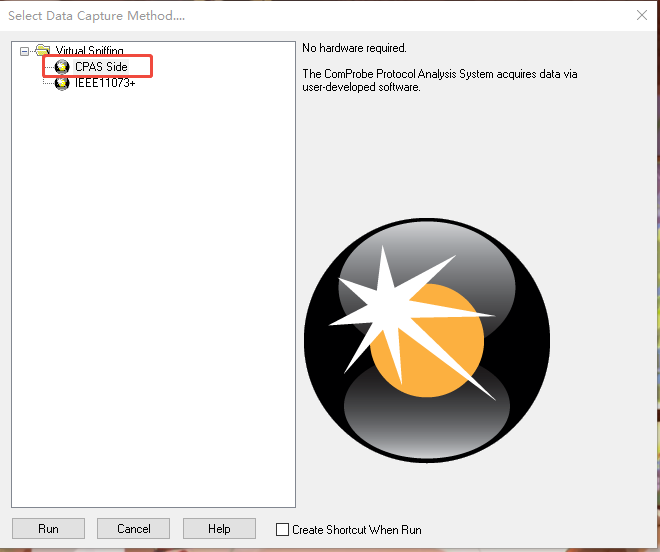
Select the CPAS side
3.4 Configure the Serial Protocol
Open the settings and configure the serial protocol.
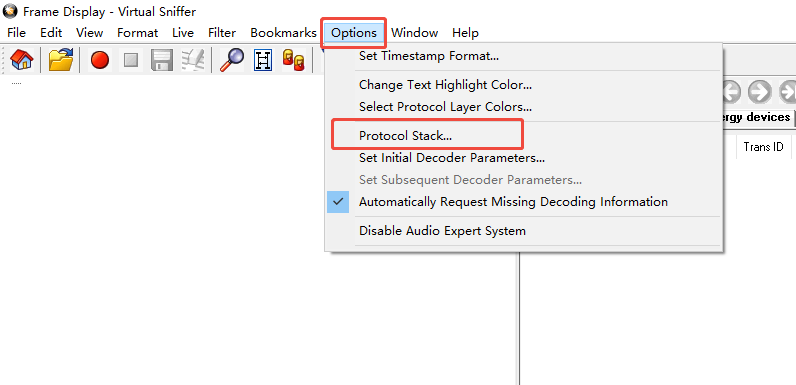
Configure the serial protocol (1)
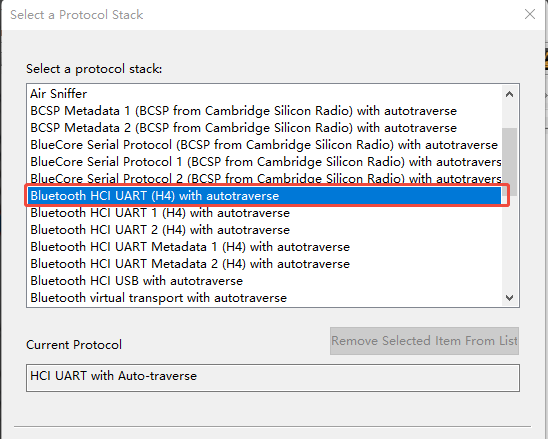
Configure the serial protocol (2)
3.5 Select Frontline in SifliTrace
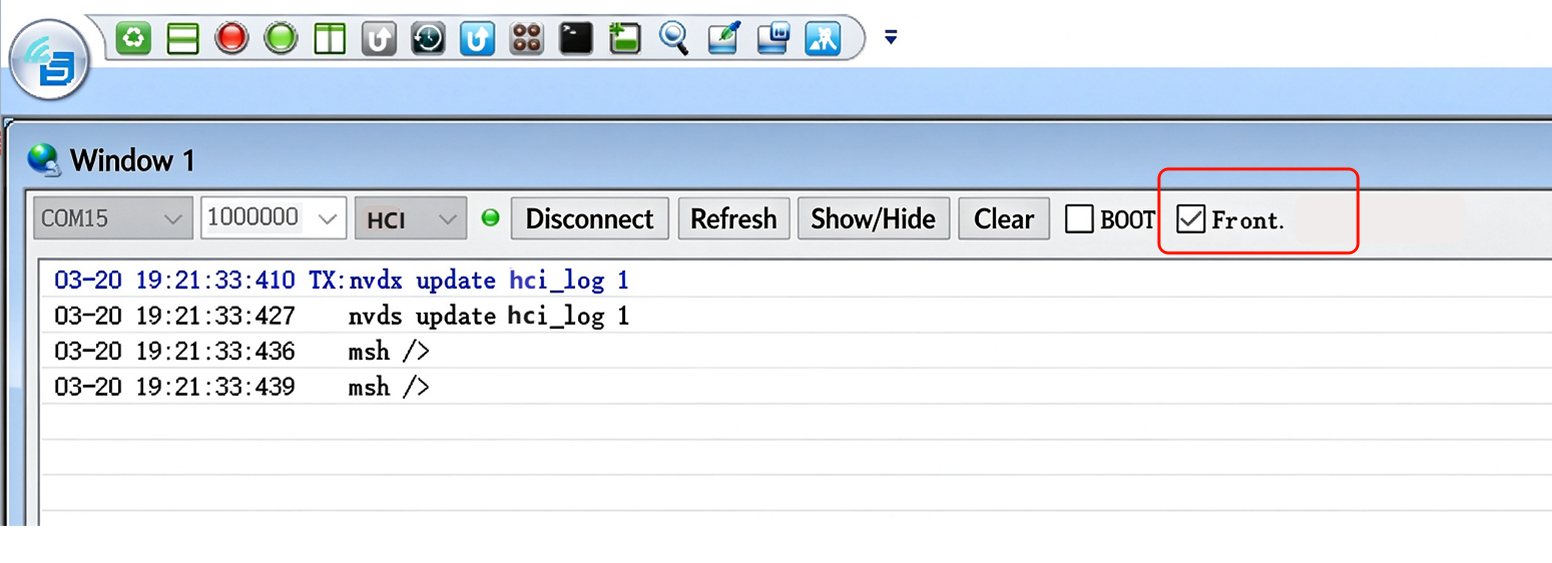
Select Frontline in SifliTrace
3.6 Start Capturing and View the Parsed Result
Click start capture in Frontline.
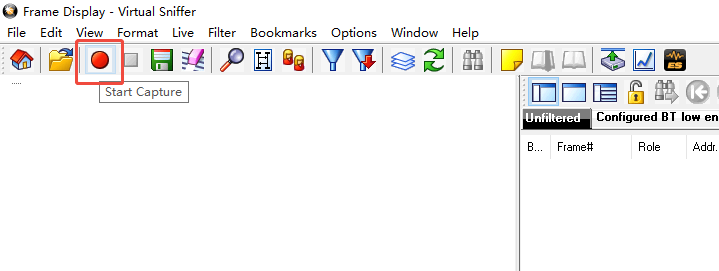
Start capturing the log in Frontline
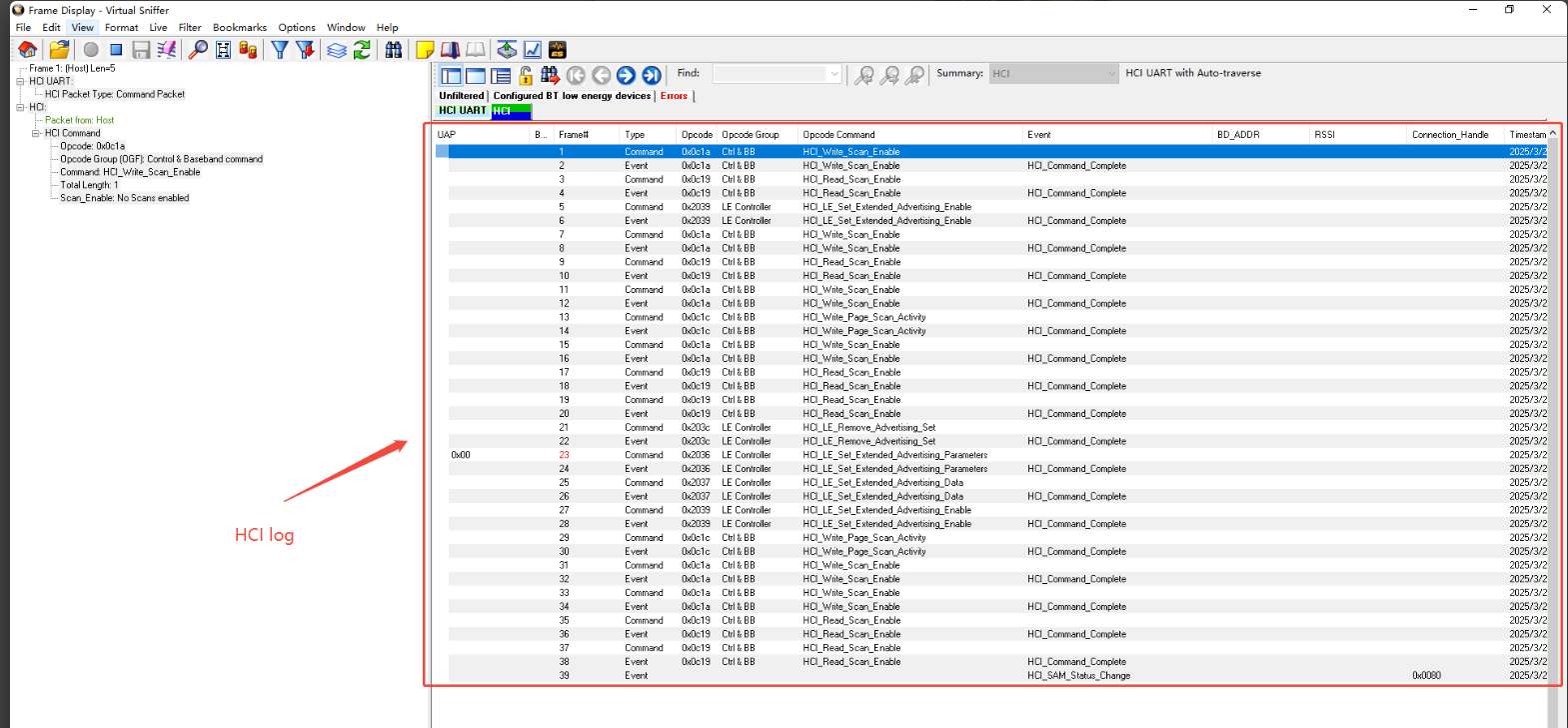
Parsed HCI log
4. Capturing the HCI Log on a Phone
The method for capturing an HCI log differs between phone brands. The following sections list the methods for mainstream phone brands.
4.1 Huawei/Honor
Enable developer mode
Settings→About phone→Software information, then tap “Build number” 7 times.
Enable the HCI log
Go to
System & updates→Developer options, and enable “Enable Bluetooth HCI snoop log”.
Reproduce the problem
Reproduce the problem on the phone.
Extract the log
Export the log from a PC using the adb tool:
adb pull /data/log/bt <local path on PC>Log path:
bt/btsnoop_hci_xxxxxxxx.log.
4.2 OPPO/Realme
Enable developer mode
Settings→About phone→Software information, then tap “Build number” 7 times.
Start log capture
Dial
*#800#→ select Bluetooth exception → switch to developer mode → tap Start capture (without reboot).
Reproduce the problem
Reproduce the problem on the phone.
Stop capture
After reproducing the problem, tap Stop capture.
Log path
OPPO:
/Internal shared storage/oppo_log/
/Internal shared storage/Android/data/com.coloros.logkit/files/Log/
/storage/emulated/0/oppo_log
Realme:
/storage/emulated/0/Android/data/com.coloros.logkit/files/Log/The file suffix is
.cfa.
4.3 Xiaomi/Redmi
Enable log capture
Dial
*#*#5959#*#*→ the status bar shows a notification indicating that capture has started.
Reproduce the problem
Reproduce the problem on the phone.
Stop capture
Dial
*#*#5959#*#*.
Log path
Local path:
MIUI/debug_log/Or obtain the
bugreport-xxxx.ziparchive viaadb bugreport.
4.4 Samsung
Enable developer mode
Settings→About phone→Software information, then tap “Build number” 7 times.
Enable the HCI log
Developer options→ “Enable Bluetooth HCI snoop log”.
Reproduce the problem
Reproduce the problem on the phone.
Export the log
Dial
*#9900#→ tap RUN DUMPSTATE/LOGCAT → when finished, select COPY TO SDCARD.
Log path
log/bluetooth/btsnoop_hci_xxxxxxxx.cfa
4.5 Google Phones
Enable the HCI log
Settings→About phone→Software information, then tap “Build number” 7 times.
Extract the log
adb bugreportLog path:
debuglogger/connsyslog/bthci/CsLog_xxxxxxxx
4.6 vivo/IQOO
Enable log capture
Dial
*#*#112#*#*to open the log capture tool, select Bluetooth as the log type, and tap Start capture.
Reproduce the problem
Reproduce the problem on the phone.
Stop capture
Tap Stop capture in the log capture tool.
Export the log
After the log is compressed automatically, tap Share to export it, for example via QQ or WeChat.
4.7 iPhone (iOS)
4.7.1 Install the Profile on the Phone
On the phone, open
https://developer.apple.com/bug-reporting/profiles-and-logs/?name=bluetoothin Safari.
Enter your Apple ID
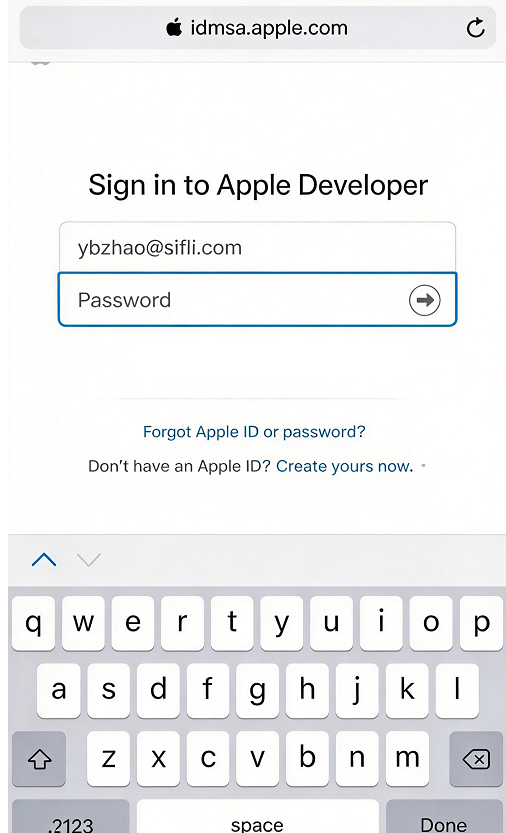
Enter your Apple ID
Select Bluetooth for iOS - Instructions
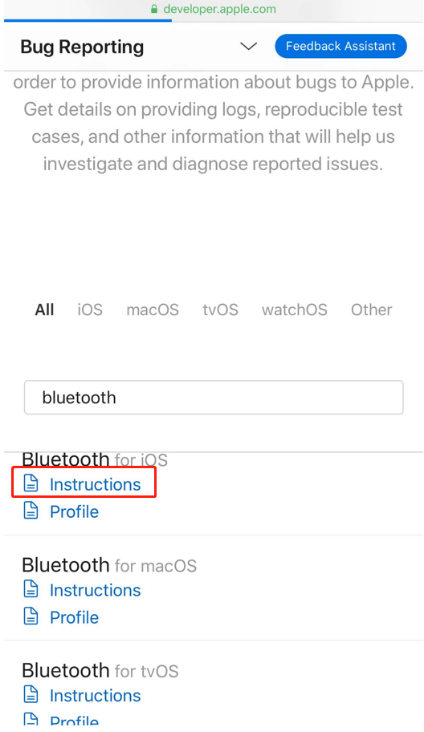
Select Instructions
Tap the profile
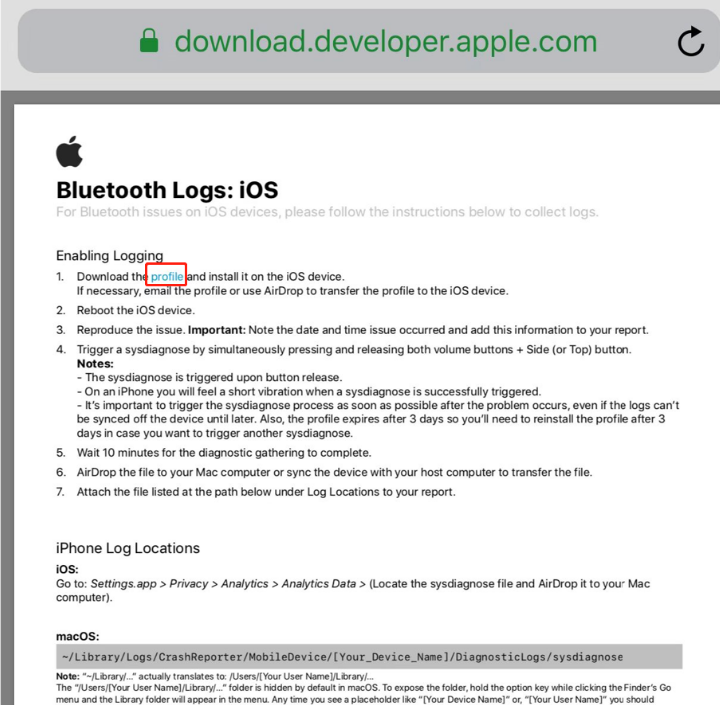
Select the profile
The profile is downloaded
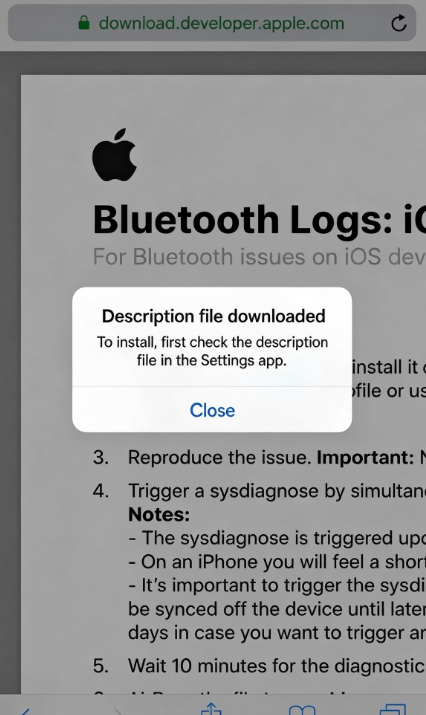
Profile downloaded
Install the configuration profile
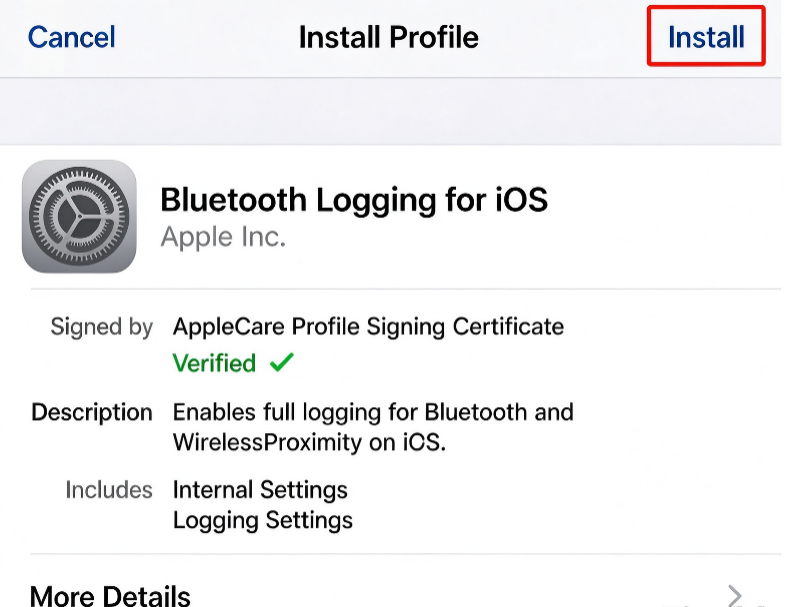
Install the configuration profile
The configuration profile is installed
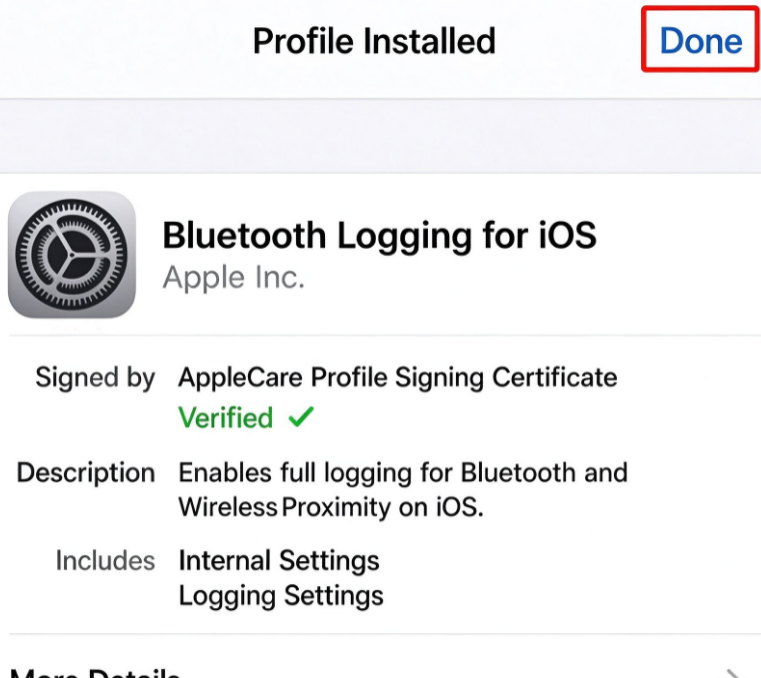
Configuration profile installed
Verify the configuration profile
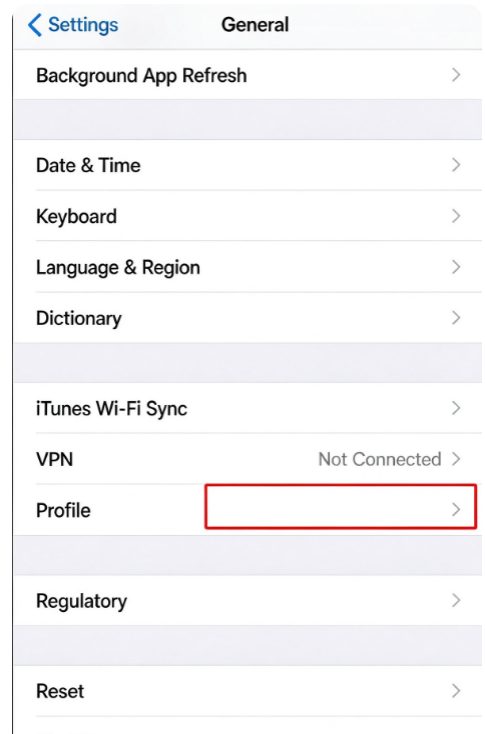
Verify the configuration profile
4.7.2 Obtain the Log
Connect the phone to a PC, open Additional Tools - Hardware - PacketLogger on the PC, and start capturing the log. Then reproduce the problem on the phone.
4.8 Notes
Root permission
If you cannot find the log path, you may need to root the phone.
Configuration file modification
Modifying
bt_stack.confrequires the permission to build the Android source code.
Log format
.log,.cfa, and.pklgcan all be analyzed with Wireshark or Frontline.