Creating and Uploading SiFli Package Registry Packages
This section describes how to log in, create, build, and upload your own SiFli Package Registry packages.
Note
Some screenshots on this page were captured with the old CLI format. If a screenshot differs from the text, follow the current sdk.py sf-pkg ... commands in the document.
Obtaining an Access Token
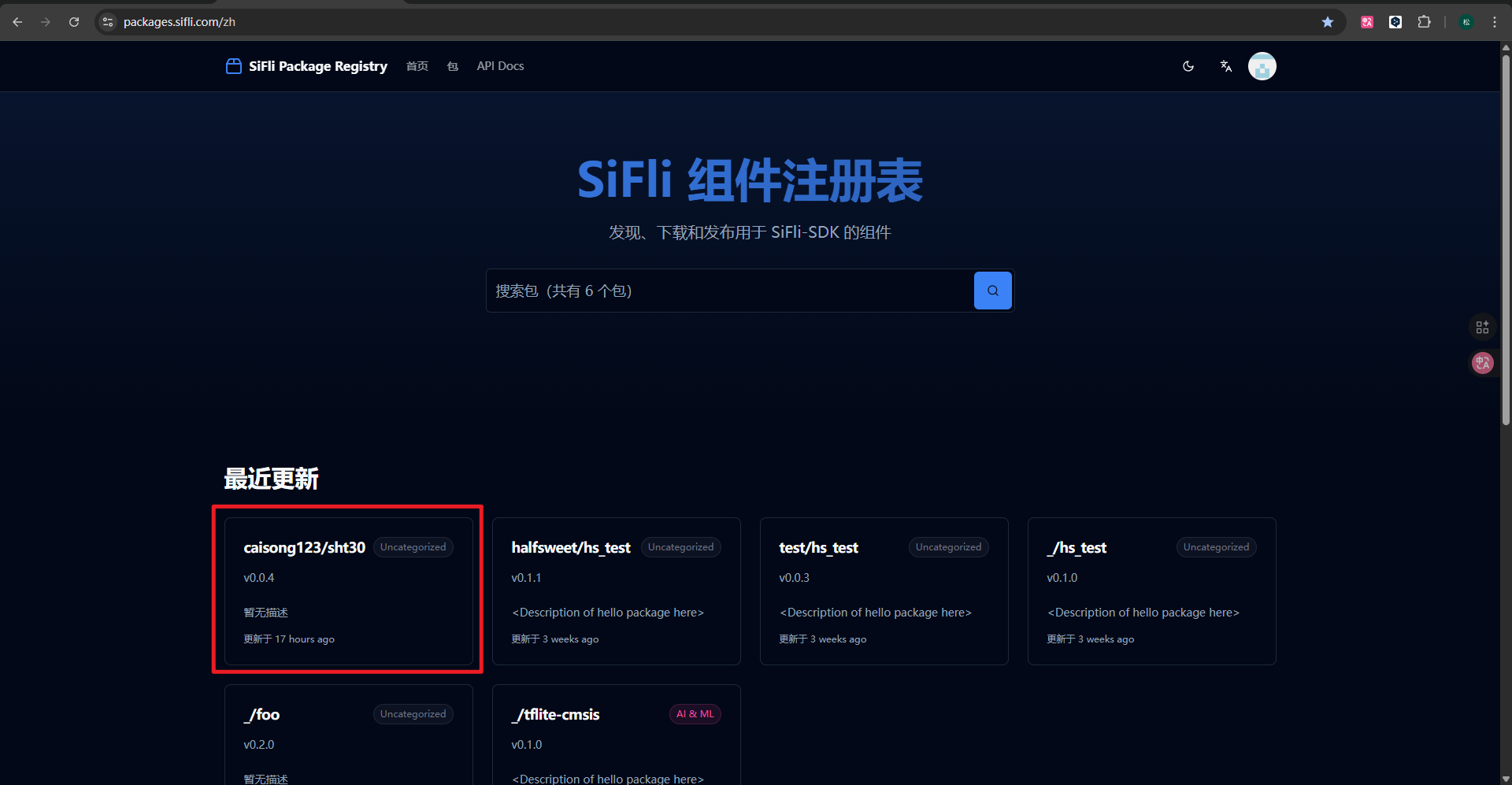
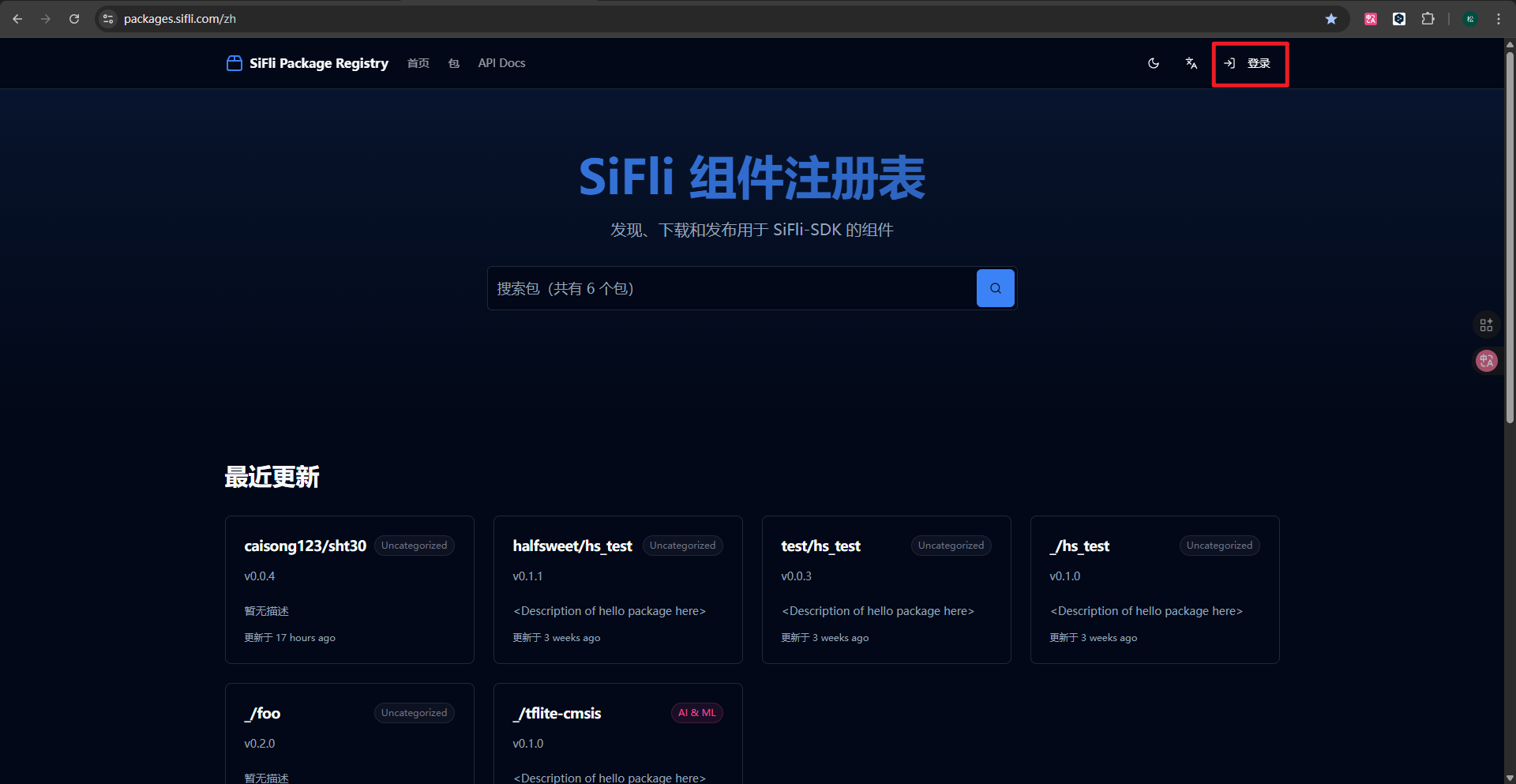
Open https://packages.sifli.com/zh and log in using your GitHub account. Your username will be your GitHub username (all lowercase).
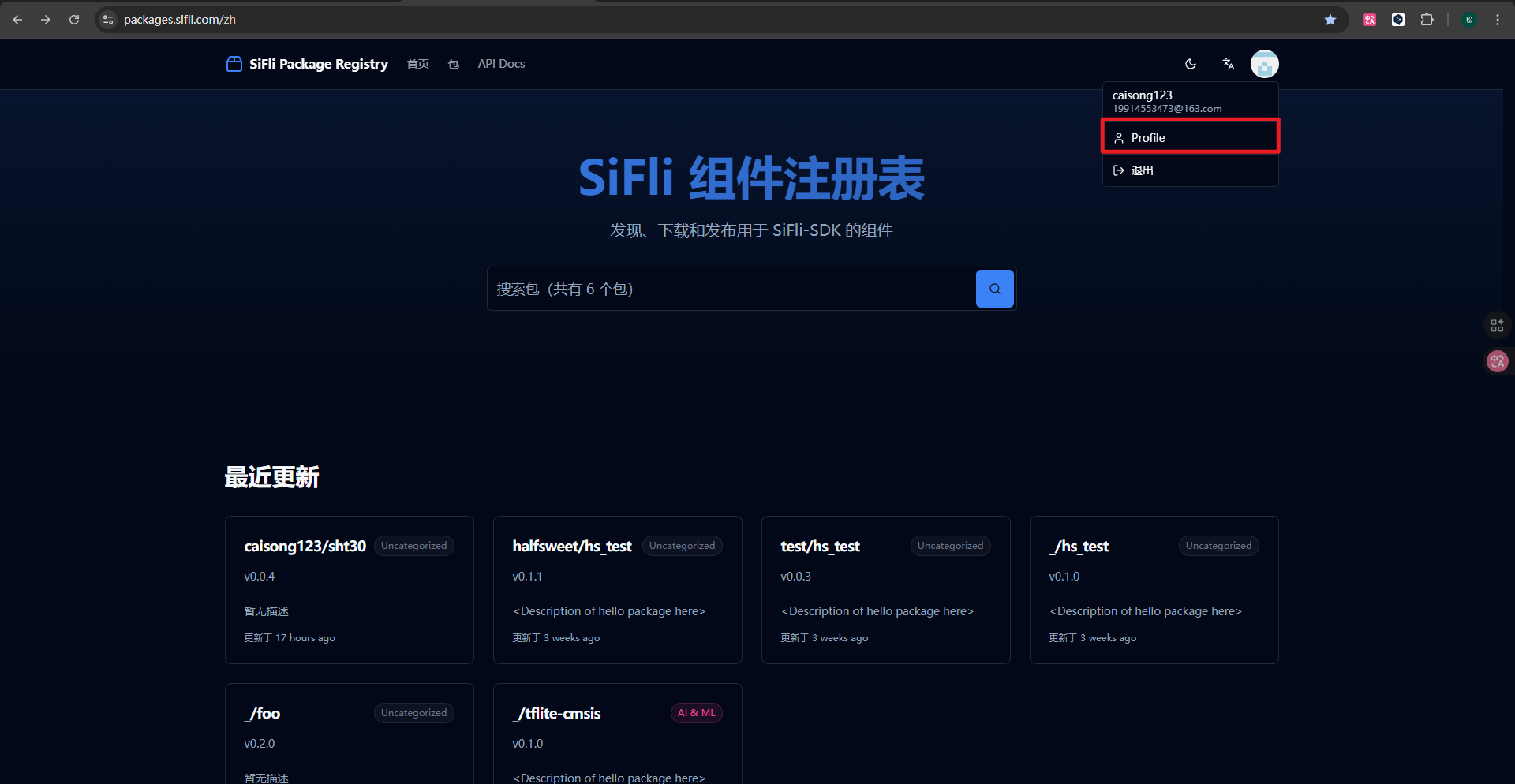
After logging in, navigate to Profile.
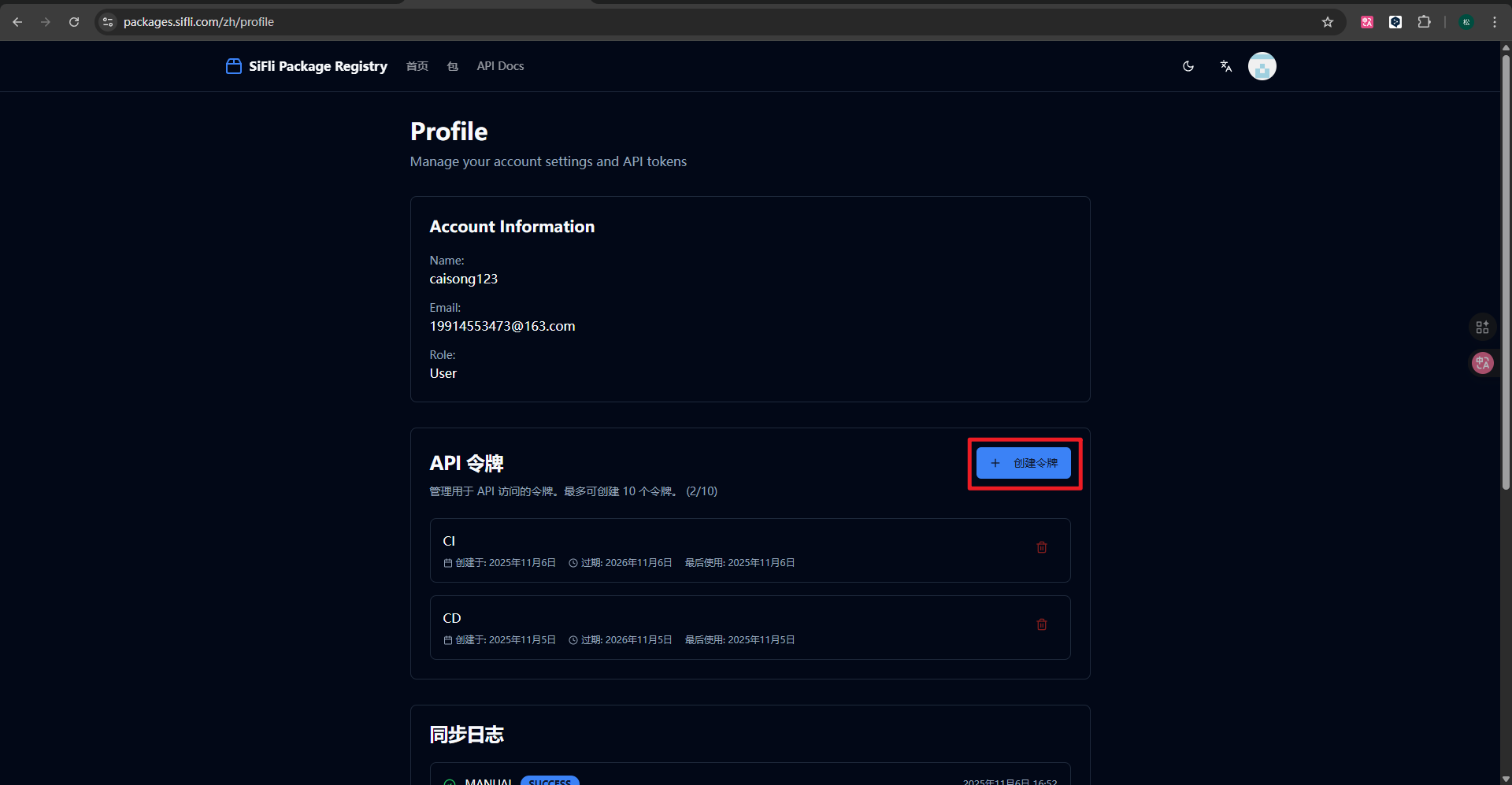
In your profile center, apply for an access token (Token) and save it securely. This token will be used for the
sdk.py sf-pkg logincommand.
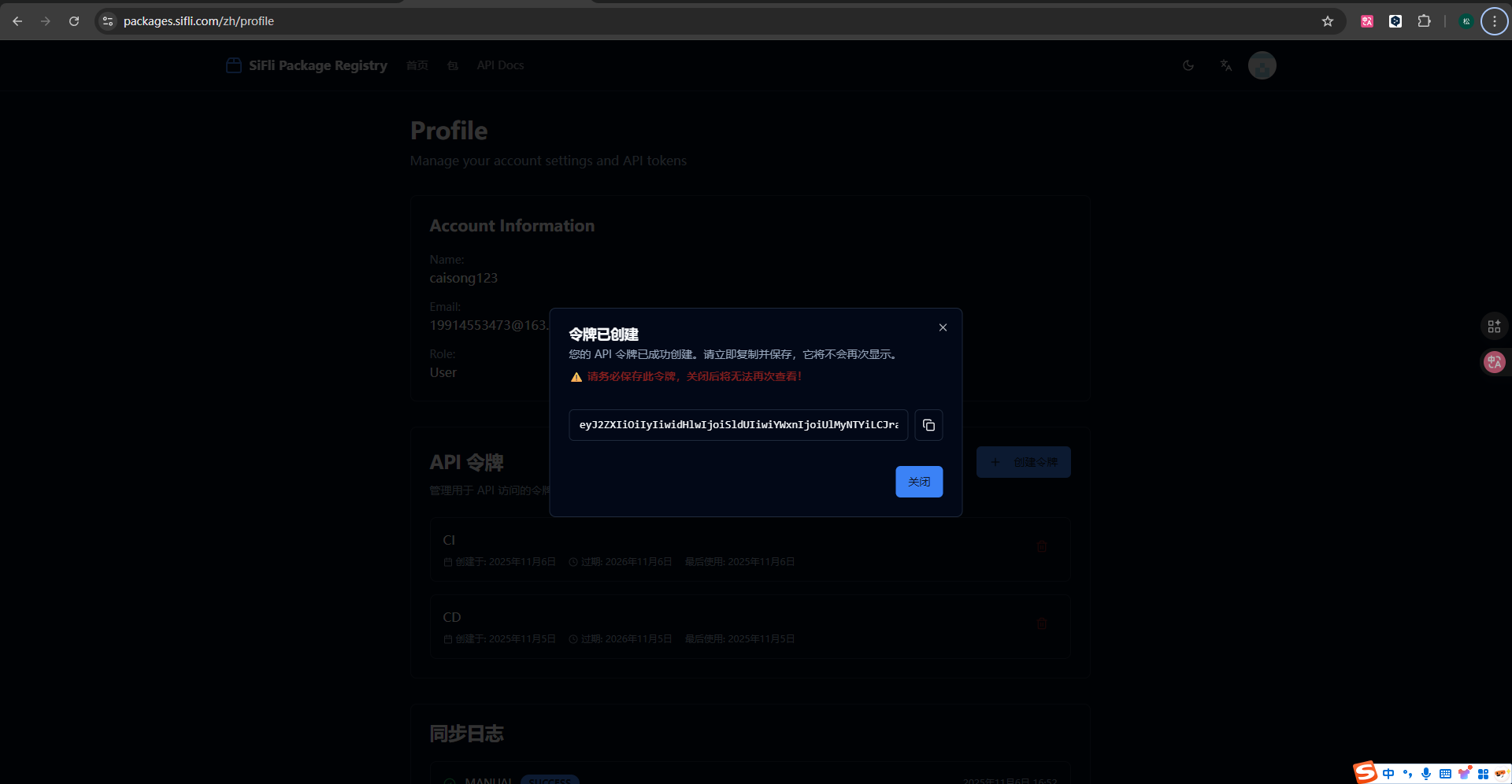
Note
Each user only needs to log in once per computer. Credentials are encrypted locally, and multiple users can be stored on the same machine.
Log in to SiFli Package Registry
sdk.py sf-pkg login -u <lowercase_GitHub_username> -t <obtained_token>
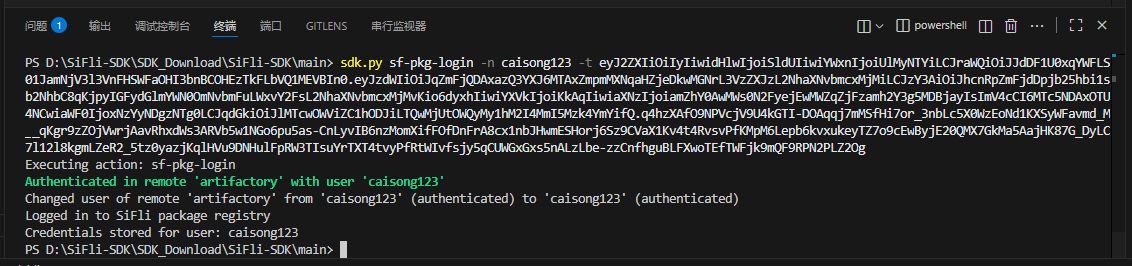
Warning
The -u parameter must be your lowercase GitHub username! Otherwise, the upload will fail.
Multi-user Management and User Selection
List locally stored users:
sdk.py sf-pkg users
Switch active user:
sdk.py sf-pkg use --name <namespace>
Show current active user:
sdk.py sf-pkg current-user
Notes:
The selected user is mapped to a Conan remote with the same name, and remote operations use
-r=<namespace>.If no user is selected, remote commands will ask you to login or switch user first.
If the same-name remote is missing, has a mismatched URL, or is authenticated as another user, local credentials for that user are cleared and you will be asked to login again.
sf-pkg logout --name <namespace>also clears the same-name Conan remote for that user.
To override user for a single command, use the sf-pkg group --user option:
sdk.py sf-pkg --user <namespace> upload --name <package_name>/<version>@<namespace>
Create Package Configuration (sf-pkg new)
After preparing the driver folder, navigate to that directory in the terminal and execute:
sdk.py sf-pkg new --name <package_name>
By default, this uses the active user. To temporarily select another user:
sdk.py sf-pkg --user <namespace> new --name <package_name>
Optional parameters:
--version: Package version number--license: License declaration--author: Author--support-sdk-version: Supported SiFli-SDK version
Example (with version and author information):
sdk.py sf-pkg new --name <package_name> --version 1.0.0 --author yourname
Upon successful execution, a conanfile.py file will be generated. For detailed information, refer to the Conan Official Documentation.
Generally, the default content of the conanfile.py file is as follows:
from conan import ConanFile

class Example_AddRecipe(ConanFile):
    name = "example_add"
    version = "0.1.0"

    license = "Apache-2.0"
    user = "halfsweet"
    author = "halfsweet"
    url = "<Package recipe repository url here, for issues about the package>"
    homepage = "<Package homepage here>"
    description = "<Description of hello package here>"
    topics = ("<Put some tag here>", "<here>", "<and here>")

    support_sdk_version = "^2.4"

    # Sources are located in the same place as this recipe, copy them to the recipe
    exports_sources = "*"

    python_requires = "sf-pkg-base/[^1.0]@sifli"
    python_requires_extend = "sf-pkg-base.SourceOnlyBase"


    def requirements(self):
        # add your package dependencies here, for example:
        # self.requires("fmt/8.1.1")
        pass
Pay close attention to the following parameters:
name: Package name, required. Used as a unique identifier onhttps://packages.sifli.com.version: Package version number. It is recommended to use semantic versioning, such as0.0.1,1.0.0, etc.user: Your username (also callednamespace) onhttps://packages.sifli.com, required.license: Open-source license. Common options includeApache-2.0,MIT,GPL-3.0,BSD-3-Clause, etc. The default isApache-2.0.author: Package author/maintainer name, optional.url: Package repository URL (GitHub/GitLab, etc.), optional.description: Detailed description of the package, optional.topics: Package tags/topics for easier searching and categorization. Use tuple format, optional.support_sdk_version: Supported SiFli-SDK version, required. Format follows Semantic Versioning range.
The combination of user and name serves as the unique identifier for the package.
The requirements method is used to add package dependencies:
def requirements(self):
    # add your package dependencies here, for example:
    # self.requires("fmt/8.1.1")
    pass
This indicates that no dependencies have been added. You can add required packages in the requirements method. For example:
def requirements(self):
    self.requires("sht30/0.0.4@caisong123")
self.requires is used to specify dependencies in the format package_name/version@username.
Build Package (sf-pkg build)
Execute the following command in the driver folder:
sdk.py sf-pkg build --version <version_number>
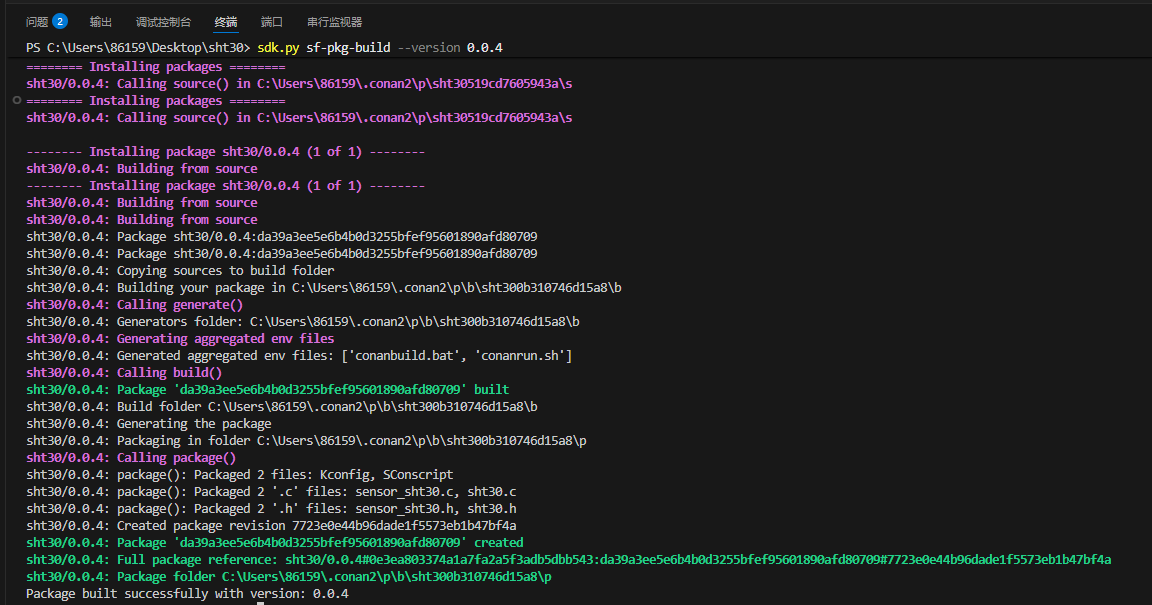
It is recommended to use semantic versioning for the version number, such as
0.0.1,1.0.0, etc.
Upload Package (sf-pkg upload)
sdk.py sf-pkg upload --name <package_name>/<version>@<username>
By default, this uses the active user. To temporarily select another user:
sdk.py sf-pkg --user <namespace> upload --name <package_name>/<version>@<namespace>
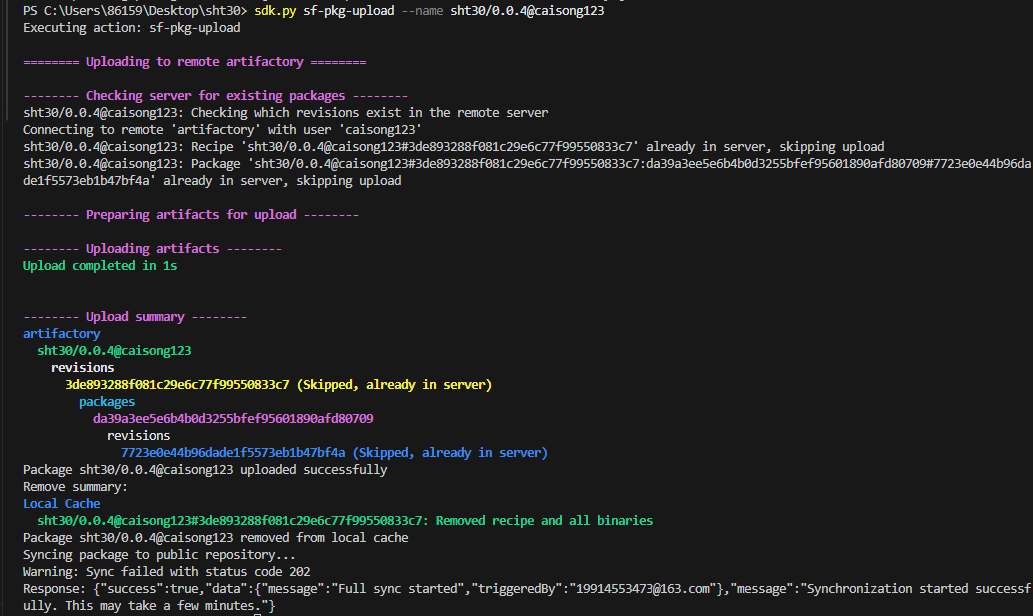
Command format explanation:
package_name: The package name defined inconanfile.pyversion: The version number specified during buildusername: Your GitHub username
Handling Upload Failures
Clear local cache:
sdk.py sf-pkg remove --name <package_name>(Optional) Remove the package from the remote repository:
sdk.py sf-pkg remove --name <package_name>/<version>@<username> --remoteNote:
--remoteremoves the package from the selected user’s same-name remote (-r=<namespace>). Please login first and ensure user state is valid.Rebuild:
sdk.py sf-pkg build --version <version_number>Upload again:
sdk.py sf-pkg upload --name <package_name>/<version>@<username>
Verify Upload Result
After a successful upload, you can view the uploaded package on the server website: